

How to Keep Files Secure on an External SSD Used for Backups
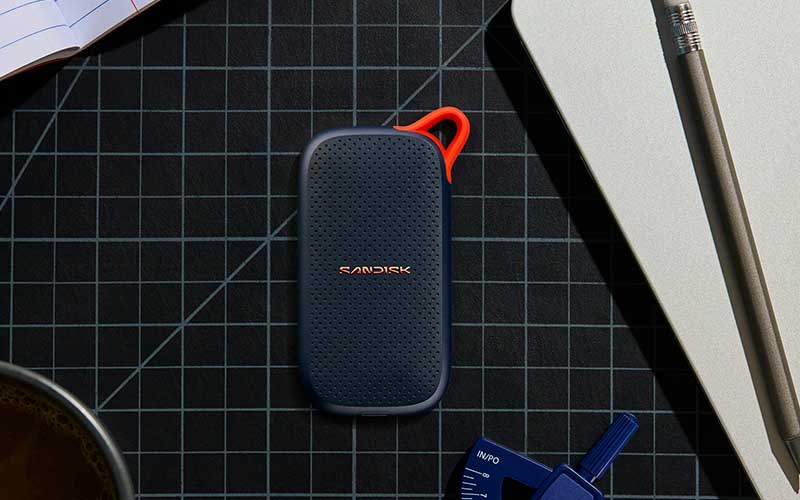
External SSDs are a convenient way to store backup copies of important files. They are fast, portable, relatively durable, and can hold large amounts of data without relying on cloud storage. However, simply copying files to an external SSD does not automatically make those files secure. If the drive is lost, stolen, damaged, or accessed by someone else, your backup could be exposed or lost entirely.
If you use an external SSD mainly for storing backup data, a few simple security practices can significantly reduce these risks.
1. Encrypt the External SSD
One of the most important steps is to encrypt the drive. Encryption protects the data even if someone gets physical access to the SSD. Without the correct password or encryption key, the files should be unreadable.
The exact method depends on your operating system. Windows users can use features such as BitLocker where supported, while macOS users can encrypt external drives using the system’s built-in encryption options. There are also reputable third-party encryption programs that can encrypt an entire drive or create an encrypted storage area.
For a backup drive, full-drive encryption is often preferable because it protects all of the contents rather than requiring you to remember which individual folders contain sensitive information.
Choose a strong, unique password for the encrypted drive. Avoid using a password that you already use for email, social media, or other accounts. Keep in mind that encryption can protect your data from unauthorized access, but losing the encryption password or recovery key can also mean losing access to the backup.
2. Disconnect the SSD When It Is Not Needed
If the external SSD is only used for backups, there is usually little reason to leave it connected to your computer all the time.
Disconnecting the drive after completing a backup provides an additional layer of protection. If malware or ransomware infects your computer while the SSD is connected, the malicious software may also be able to access or encrypt files on the external drive.
A useful routine is to connect the SSD, perform the backup, safely eject it, and then store it somewhere secure. This is sometimes called an “offline backup” because the backup is not continuously accessible from the computer.
This approach is particularly valuable against ransomware because an offline backup can remain unaffected even if the computer’s main storage is compromised.
3. Protect the SSD Physically
Digital security is only part of the problem. Because an external SSD is portable, physical security also matters.
Store the drive somewhere dry, cool, and away from direct sunlight or extreme temperatures. Avoid leaving it in places where it could easily be dropped, crushed, or exposed to liquids.
If the backup contains particularly sensitive or irreplaceable information, consider storing the SSD in a secure location when it is not being used. You should also avoid carrying your only backup with you unnecessarily.
Remember that a backup stored next to the original data is still vulnerable to the same physical disaster. For example, if your computer and backup SSD are both in the same room and there is a fire, theft, or serious water leak, you could lose both.
4. Keep More Than One Backup
An external SSD should ideally not be your only copy of important data. A good backup strategy follows the basic principle of keeping multiple copies of important files in different locations.
For example, you might keep the original files on your computer, a backup on the external SSD, and another backup on a separate drive or a trusted cloud service.
Having multiple backups protects against different types of failure. If the SSD stops working, you still have another copy. If your computer is stolen, you can recover your files from the backup. If a local disaster affects both devices, an off-site copy can provide additional protection.
5. Regularly Check Your Backups
A backup is useful only if the files can actually be recovered. Do not assume that a successful file-copy operation means everything is safe.
Periodically connect the SSD and check that important files are still present and readable. You can also open a selection of documents, photographs, videos, or other important files to confirm that they are not corrupted.
If you use backup software, check its reports or logs for errors. It is better to discover a failed backup during a routine check than when you urgently need to recover lost data.
6. Keep the Computer and Backup Software Secure
The security of the backup also depends on the computer used to create it. Keep your operating system, antivirus software, and backup applications updated. Avoid downloading suspicious programs or opening unexpected attachments, particularly before connecting the backup drive.
When possible, use established backup software that can perform scheduled backups and verify the copied data. Automated backups can also reduce the chance of forgetting to update the backup.
An external SSD can be an excellent backup solution, but storing files on it is only the beginning. Encrypting the drive, disconnecting it when it is not being used, protecting it physically, maintaining multiple backup copies, and regularly testing the backups can greatly improve your overall data security.
The most important principle is to treat a backup as something that needs protection too. Your backup should be protected from unauthorized access, malware, hardware failure, and physical disasters. With a simple routine and multiple layers of protection, an external SSD can provide a reliable and secure way to preserve important files for the long term.